🕮 Hyper-V : Create Virtual Machine (Windows)
| | On GUI configuration, set like follows. |
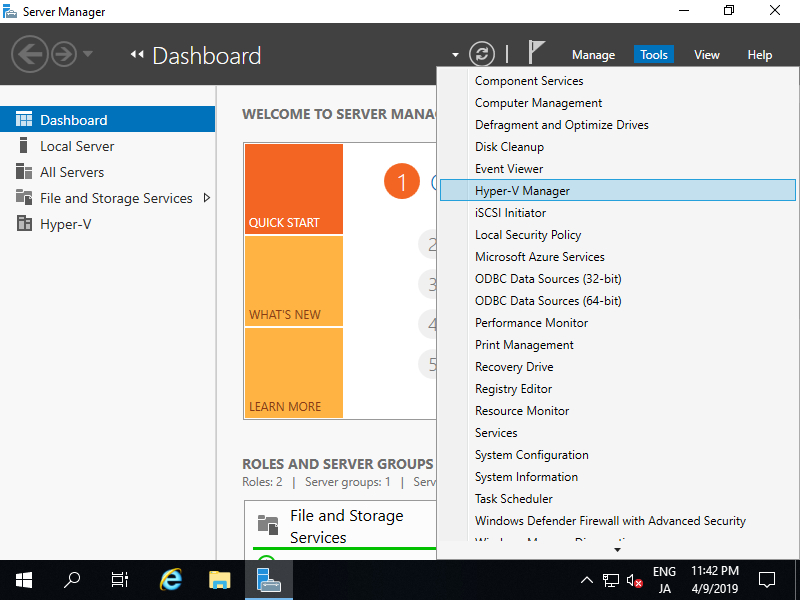
| [2] | Run [Server Manager] and Open [Tools] - [Hyper-V Manager]. |
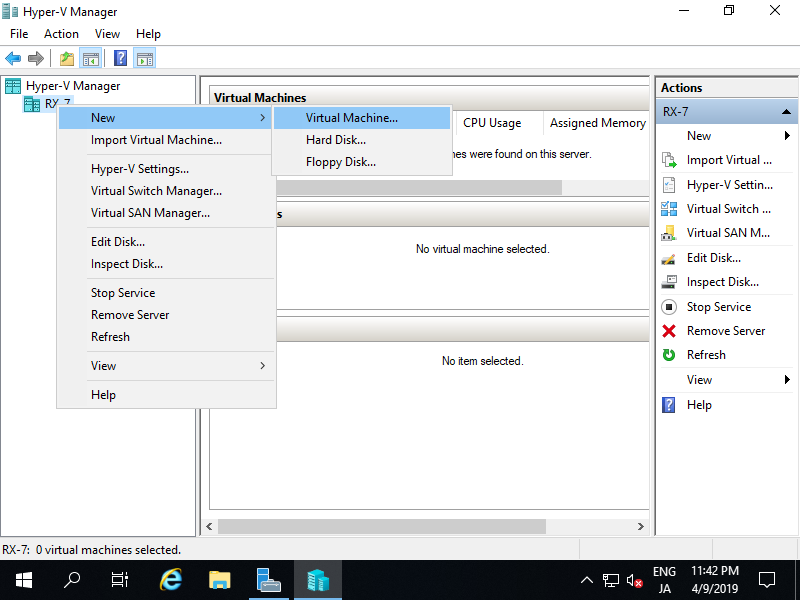
| [3] | Select Hostname on the left pane and right-click it to open the menu, and then select [New] - [Virtual Machine]. |
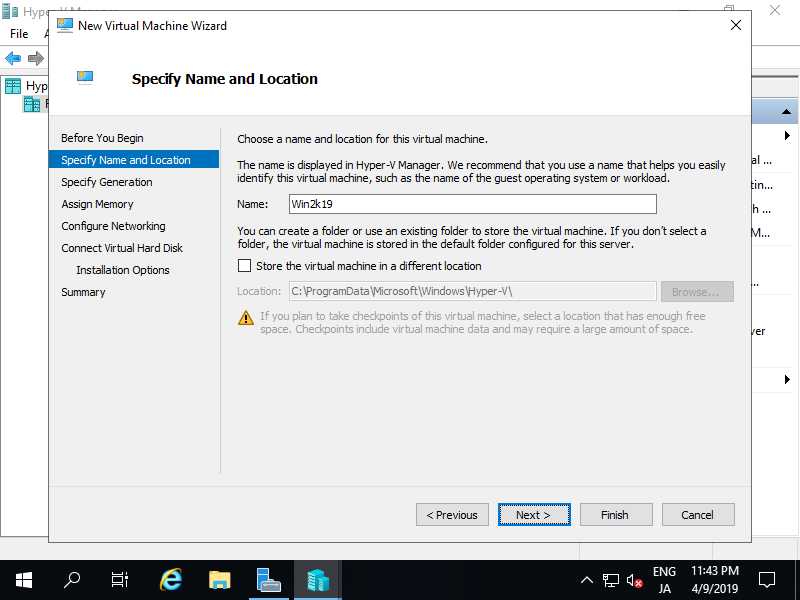
| [5] | Input name of Virtual Machine. Any name is OK. |
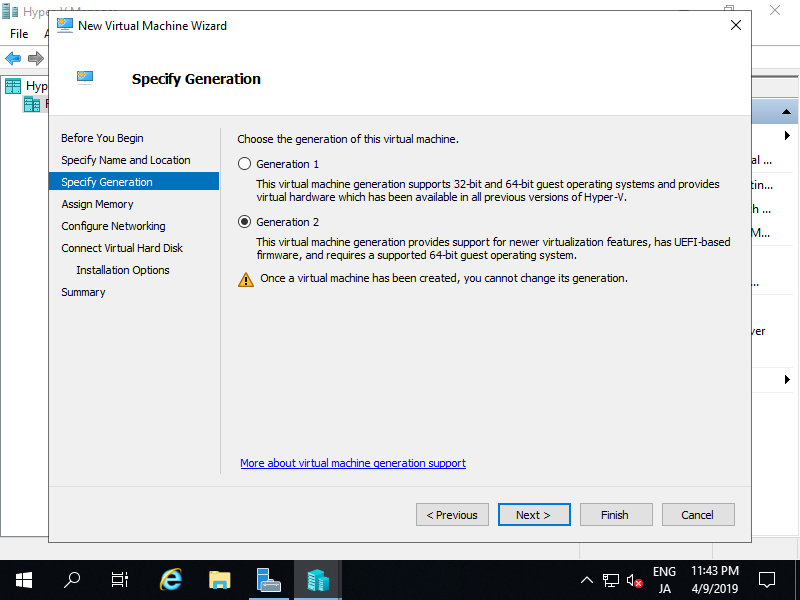
| [6] | Specify generation of Virtual Machine. On this example, select [Generation 2]. |
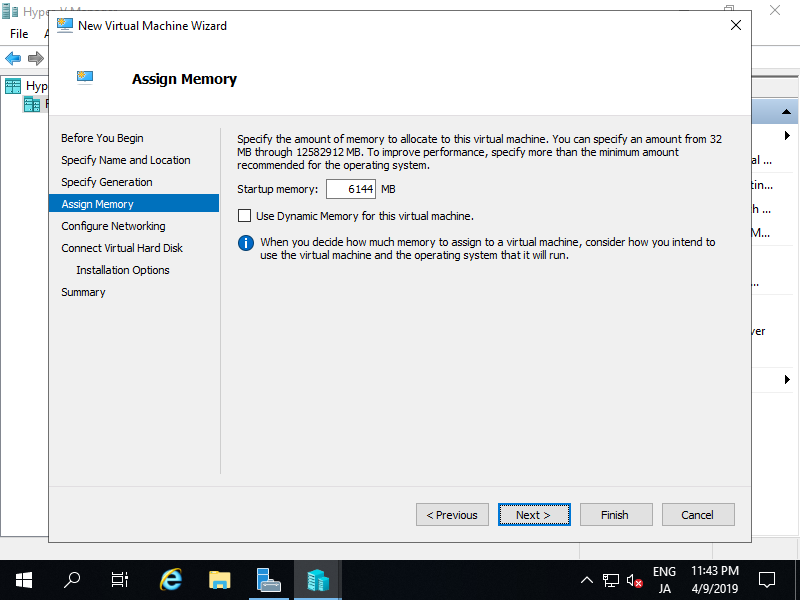
| [7] | Assign Memory for Virtual Machine. |
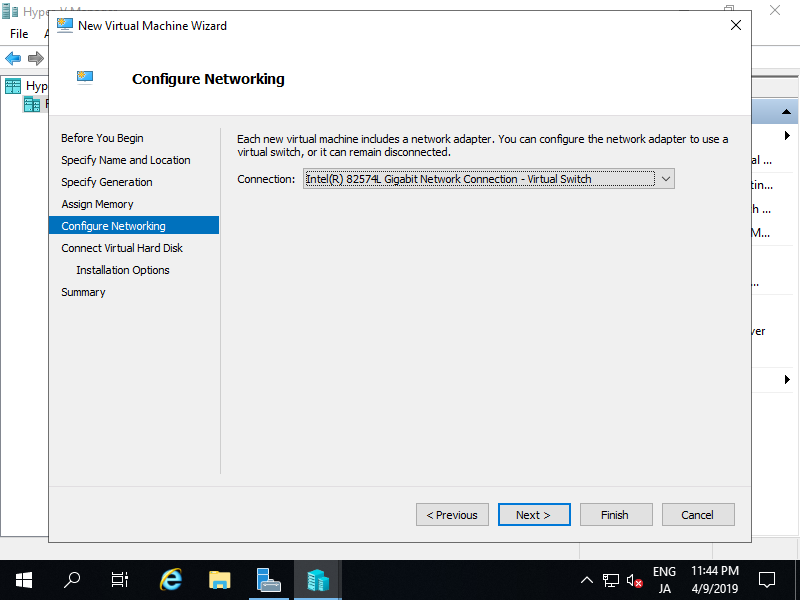
| [8] | Select Virtual Switch to use networking of Virtual Machine. |
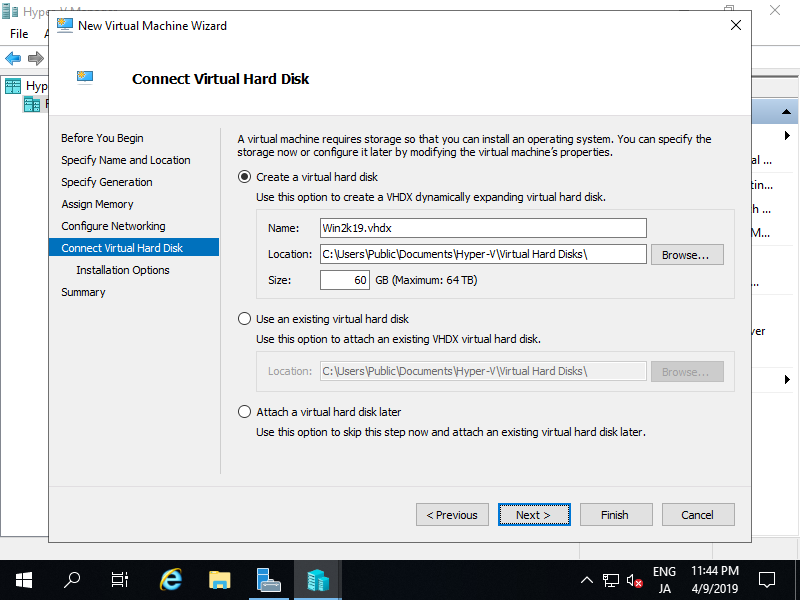
| [9] | Configure Virtual Hard Disk. Set parameters you like. |
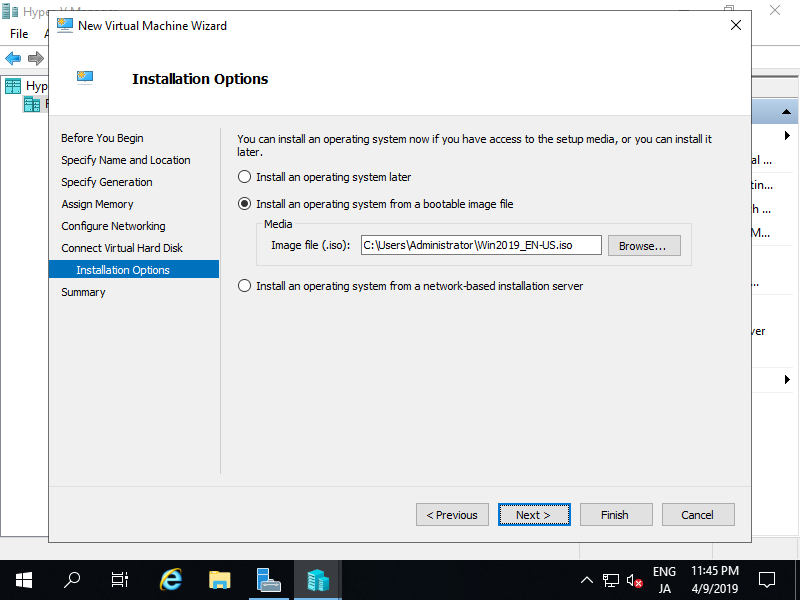
| [10] | Select installation source of GuestOS. |
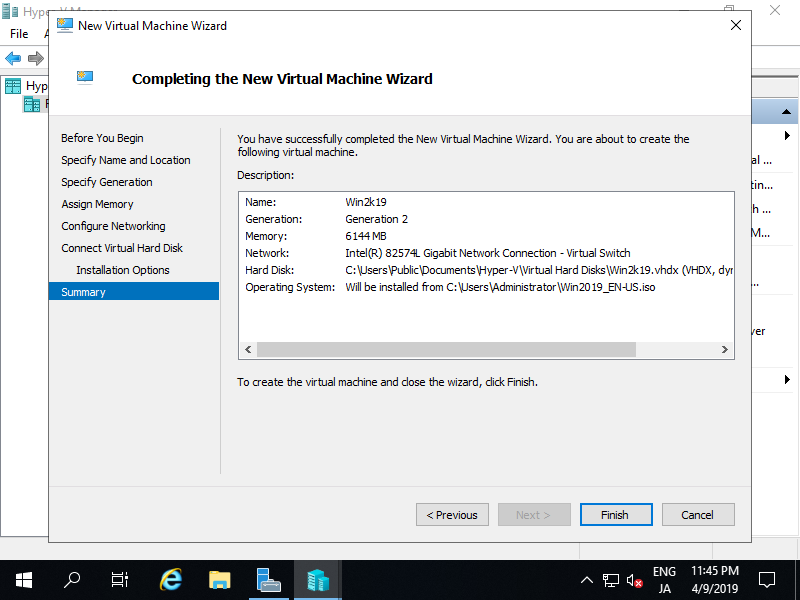
| [11] | Click [Finish] button if that's OK. |
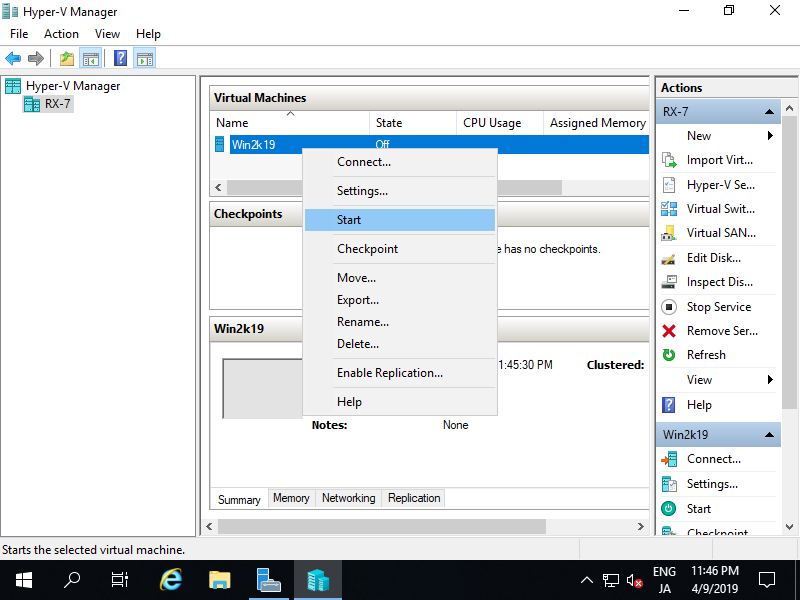
| [12] | Virtual machine has been just created. To start it, right-click it and select [Start]. |
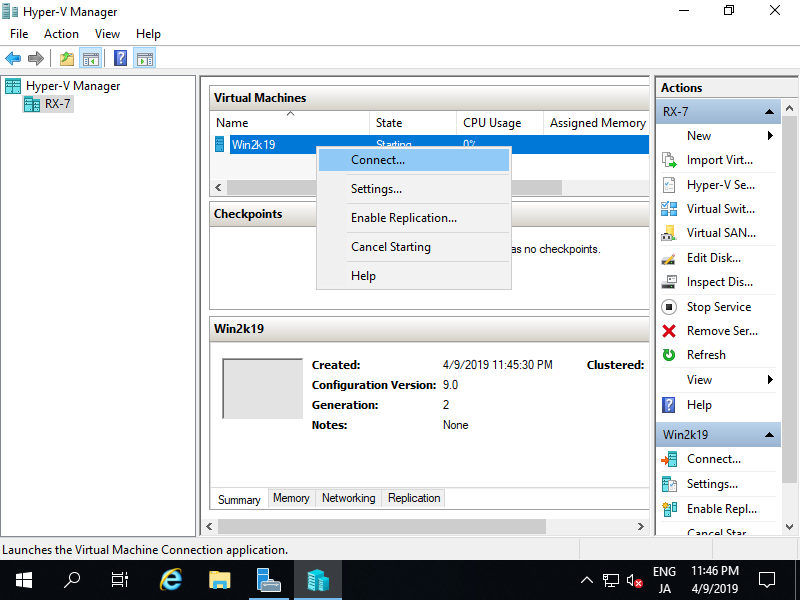
| [13] | To connect the console of Virtual Machine, right-click it and select [Connect]. |
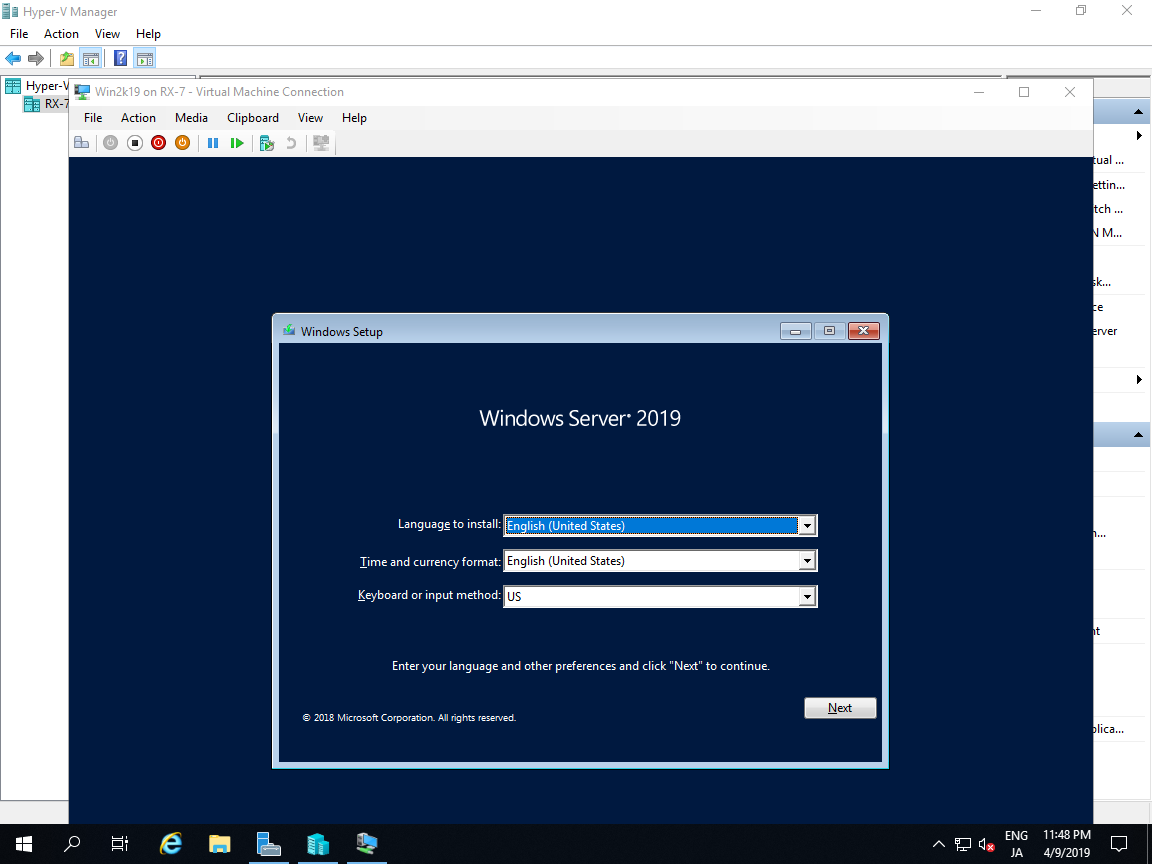
| [14] | Install GuestOS with common procedure. |
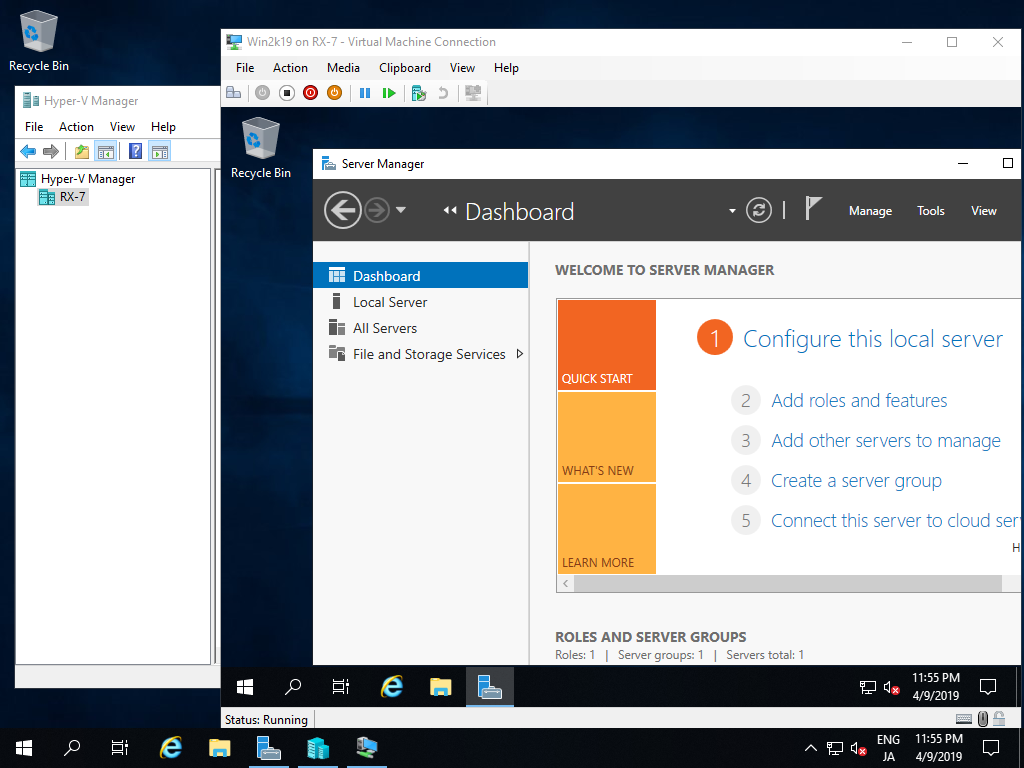
| [15] | Installation has finished and Virtual Machine Windows Server is running now. |

No comments:
Post a Comment